
To manage a player at pisignage.com as well to generate player license, the player need to be registered at pisignage.com. If you purchased licenses after a player has been registered and the player does not have the license, it need to be re-registered to generate the license.
When a player is registered the license is generated at the server and emailed to the registered email. When the player contacts the server the license will be automatically downloaded to the player.
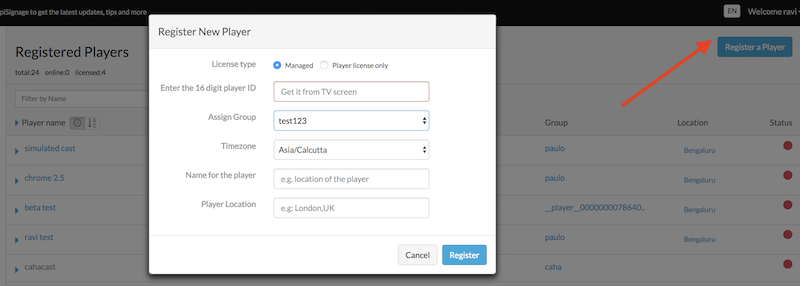
While registering a player, you can chose managed option (default) or license only option (in case you need player license only for managing using open-sourced server). Enter the player ID is displayed on the TV, the Group to which you want to assign the player, Timezone of the player location, name for the player to register. Optionally you could assign a location for the player.
Upon successful registration the player will appear under the players tab along with the status in case of managed players.
In case of open-source server, the license file need to be uploaded to the local server manually.
Comments
0 comments
Please sign in to leave a comment.